Create S3 Bucket for Frontend
Create an S3 Bucket to Store the Frontend
ℹ️ Objective
- Amazon S3 (Simple Storage Service) is an object storage service that offers scalability, high durability, and low cost.
- We will use S3 to store all the static build files of our frontend application (React build: HTML, CSS, JavaScript, images).
- Afterward, we will configure this bucket to function as a Static Website Hosting server, making sure public access is correctly set up so users can load the website interface.
🔒 Steps to Follow
1. Start Creating the S3 Bucket
- In the AWS Management Console, search for and select the S3 service.
- Click on Create bucket.
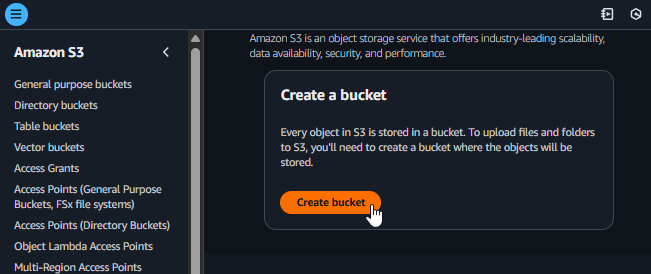
Start creating an S3 Bucket
2. Configure the Bucket
-
Bucket name:
copia-feS3 bucket names are globally unique. If the name `copia-fe` is already in use, you will need to add characters or numbers to make it unique (e.g., `copia-fe-haminhtri-0309`). -
AWS Region: Choose the region you are working in (e.g.,
ap-southeast-1). -
Block Public Access settings for this bucket:
- Uncheck the box for Block all public access (turn it off).
- This is required because the S3 bucket will host the React frontend static website, which must be publicly readable by users’ browsers to render the web interface.
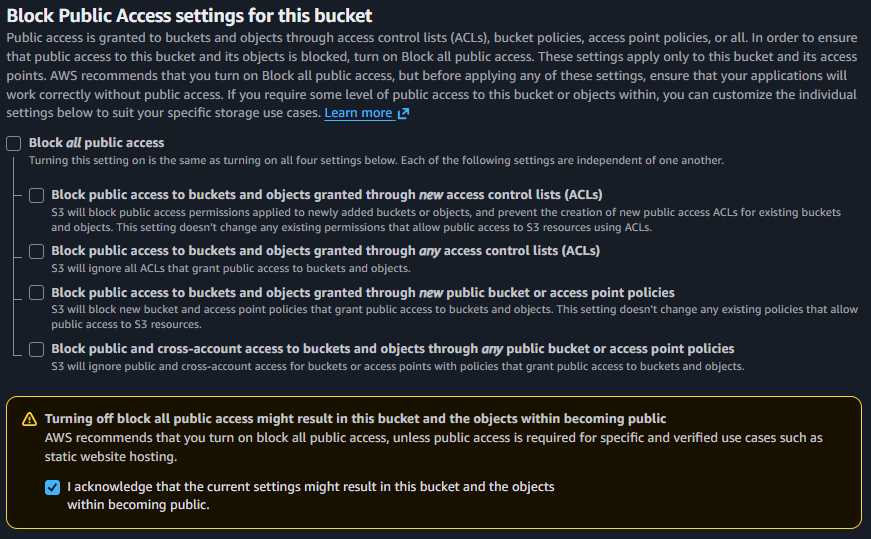
Uncheck Block Public Access settings for the bucket
- Object Ownership & ACLs:
- Once the bucket is created, navigate to the Permissions tab.
- Scroll to the Object Ownership section and click Edit.
- Select ACLs enabled and click Save changes. This allows S3 objects to be made public via Access Control Lists (ACLs).
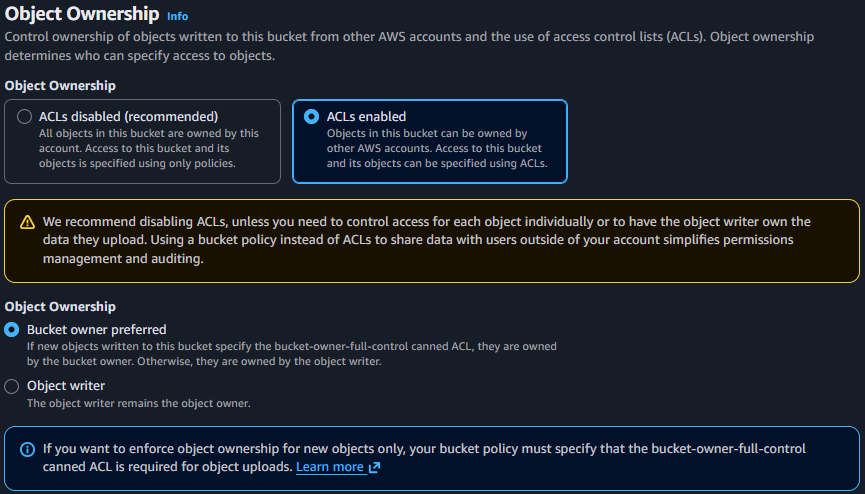
Enable Object Ownership ACLs for the bucket
3. Upload Frontend Files to the Bucket
- Build your frontend application locally using
npm run buildoryarn build. - Go into the
copia-febucket in the S3 console. - Click Upload and upload all the files and folders inside the local build folder (upload the contents, not the folder itself).
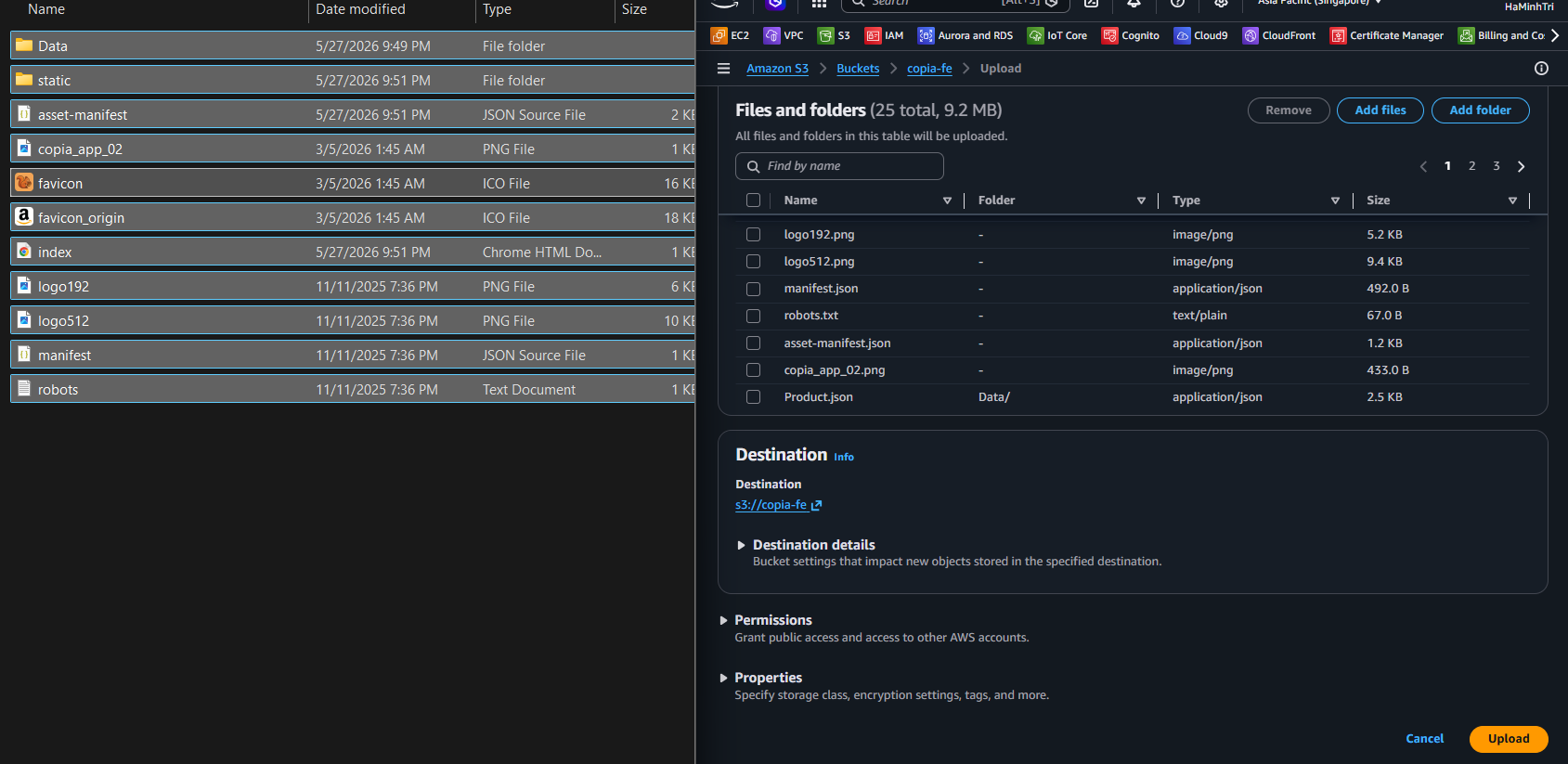
Upload Frontend files to S3
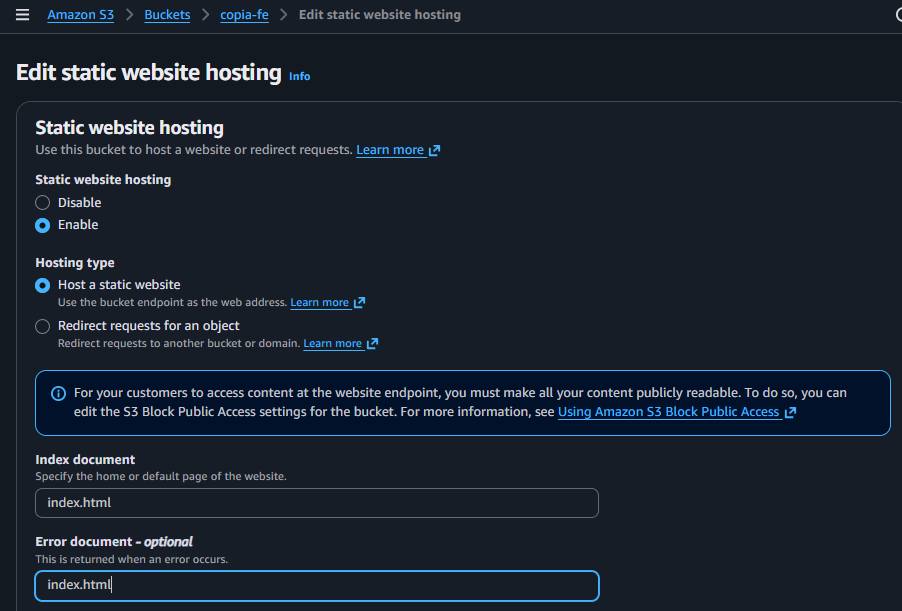
4. Configure Static Website Hosting
- In the
copia-febucket, switch to the Properties tab. - Scroll to the bottom to the Static website hosting section and click Edit.
- Select Enable.
- Index document:
index.html - Error document:
index.html**Why set both Index and Error documents to `index.html`?** React uses client-side routing (React Router). If a user accesses a subpage directly (e.g., `/login` or `/cart`), S3 will not find a corresponding physical folder or file and will generate a 404 or 403 error. By routing all errors to `index.html`, S3 returns the main entry point, allowing React Router to intercept the URL path and render the correct subpage on the client side without throwing errors. - Click Save changes.