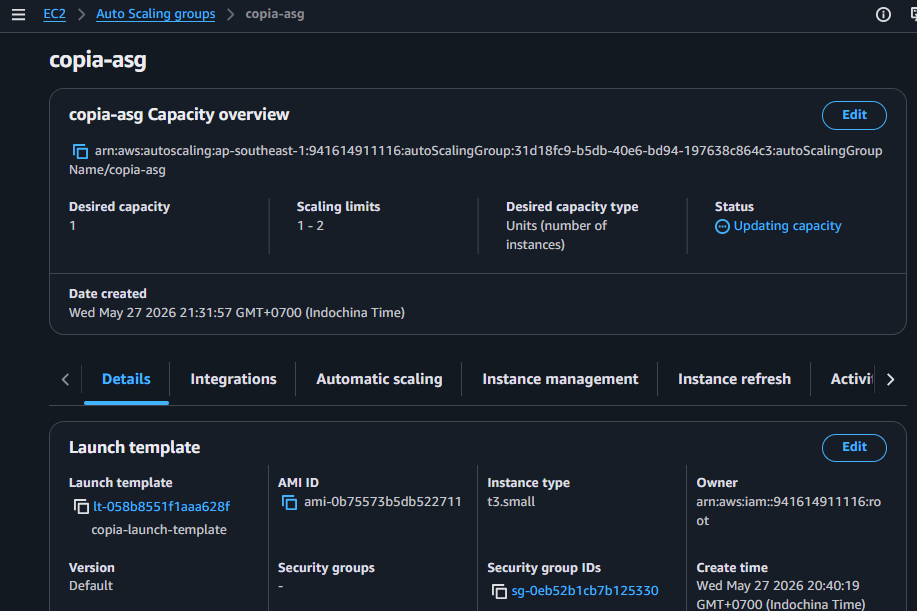
Create Auto Scaling Group (ASG)
Create an Auto Scaling Group (ASG)
ℹ️ Objective
- An Auto Scaling Group (ASG) is the heart of a flexible architecture on AWS. Its job is to automatically adjust the number of EC2 instances to meet traffic demands.
- When traffic increases, the ASG will automatically add new instances (Scale Out). When traffic decreases, it will remove unneeded instances (Scale In) to save costs.
- We will configure an ASG to use the Launch Template (
copia-launch-template) to know how to create an instance, and attach it to the Load Balancer (via the Target Group) to know when to take action.
🔒 Steps to Follow
1. Start Creating the Auto Scaling Group
- From the EC2 Dashboard, on the left menu, scroll to the bottom and select Auto Scaling Groups.
- Click on Create Auto Scaling group.
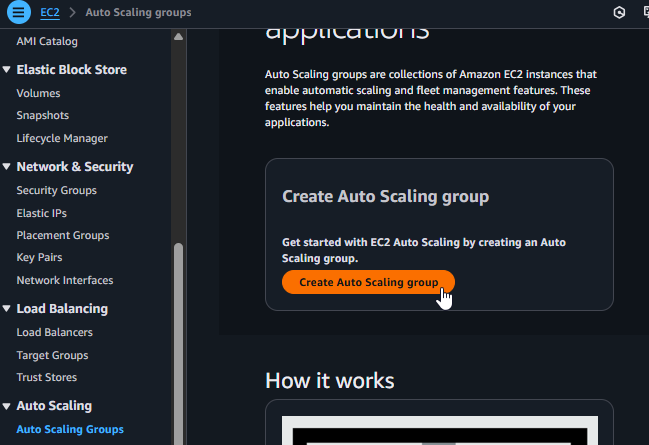
Start creating an Auto Scaling Group
2. Choose Launch Template and Name the Group
- Auto Scaling group name:
copia-asg - Launch template: Select
copia-launch-templatefrom the list. - After selecting, click Next.
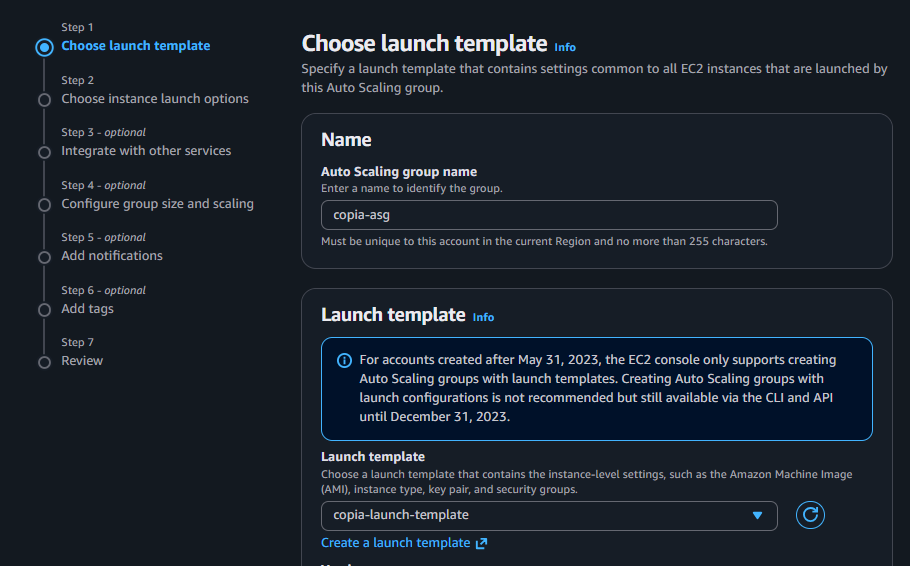
Name the group and select the Launch Template
3. Configure Network
- VPC: Select
copia-vpc. - Availability Zones and subnets: Select both Public Subnets that we have. The ASG will use these subnets to launch new instances, ensuring they are evenly distributed across two AZs for high availability.
- Click Next.
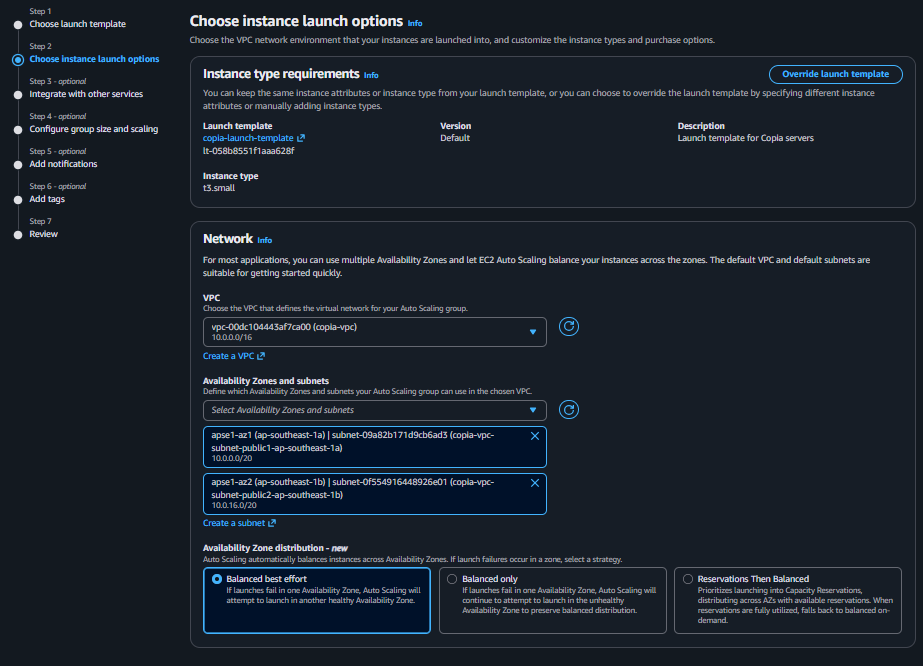
Configure the VPC and Public Subnets
4. Integrate with the Load Balancer
- Select Attach to an existing load balancer.
- Choose Choose from your load balancer target groups.
- From the dropdown list, select
copia-target-group. - Click Next.
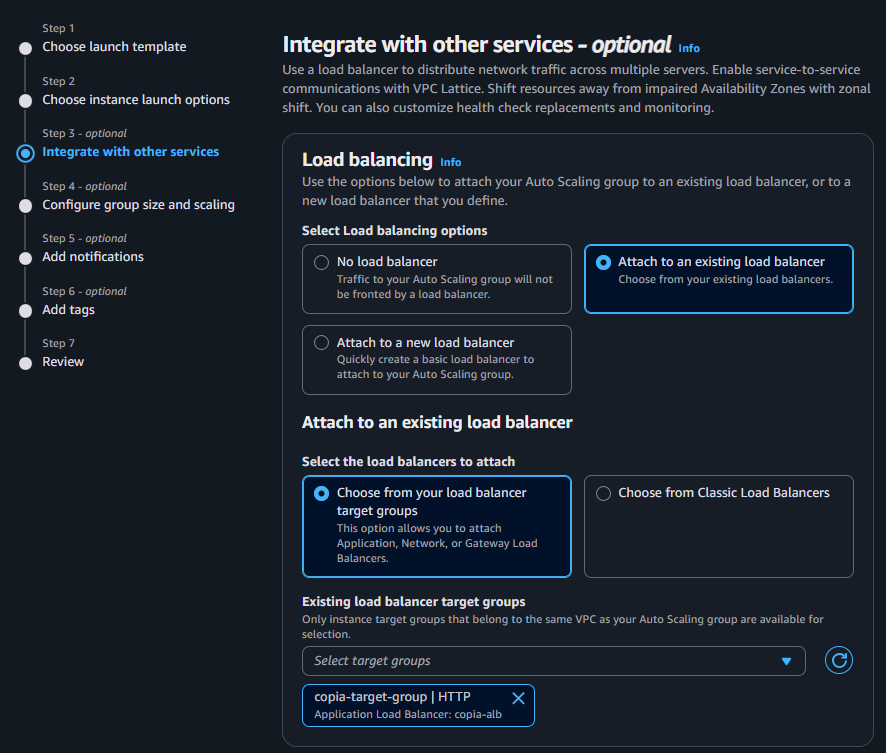
Attach the ASG to the existing Target Group
5. Configure Group Size and Scaling Policies
-
Group size:
- Desired capacity:
1(The desired number of instances when the ASG is created). - Minimum capacity:
1(Always maintain at least 1 instance). - Maximum capacity:
2(Allow a maximum of 2 instances to be created).
- Desired capacity:
-
Scaling policies:
- Select Target tracking scaling policy.
- Scaling policy name:
Target Tracking Policy - Metric type:
Application Load Balancer request count per target. - Target value:
30.
How does this policy work? You are instructing the ASG: “Monitor the average number of requests that each EC2 instance is handling. If this number exceeds 30 requests/minute, automatically create a new instance (up to a maximum of 2) to share the load. Conversely, if it is lower than 30, reduce the number of instances (down to a minimum of 1) to save money.”
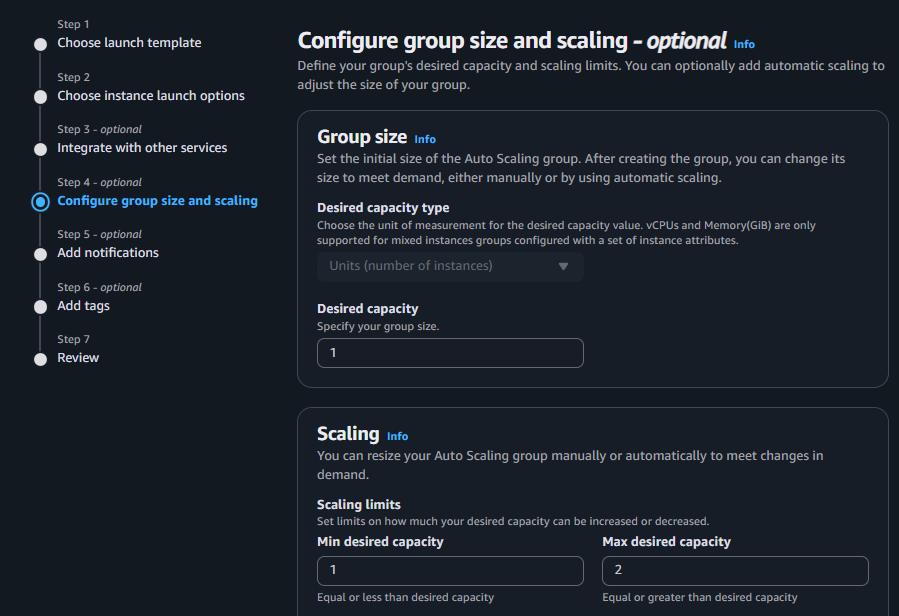
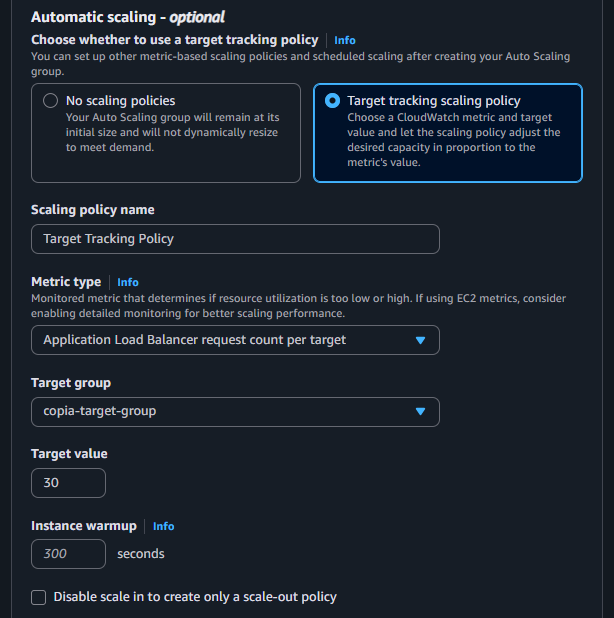
Configure group size and Scaling policies
- Click Next until you reach the Review page.
6. Review and Finalize
- Review all the configured information on the Review page.
- Scroll to the bottom and click Create Auto Scaling group.
7. Check the Result
- After creation, the ASG will appear in the list.
- Select
copia-asgand switch to the Instance management tab. - You will see the ASG is in the process of launching a new instance to meet the Desired capacity of
1. Please wait until the instance’s Lifecycle isInService. This indicates that the instance is ready and has been successfully registered with the Target Group.